

The TRACES portal provides a dashboard for tax deductors to view the overall activities in a snapshot. In this module, the content of this TRACES dashboard is extracted and displayed within TDSMAN in a simple and user-friendly interface.
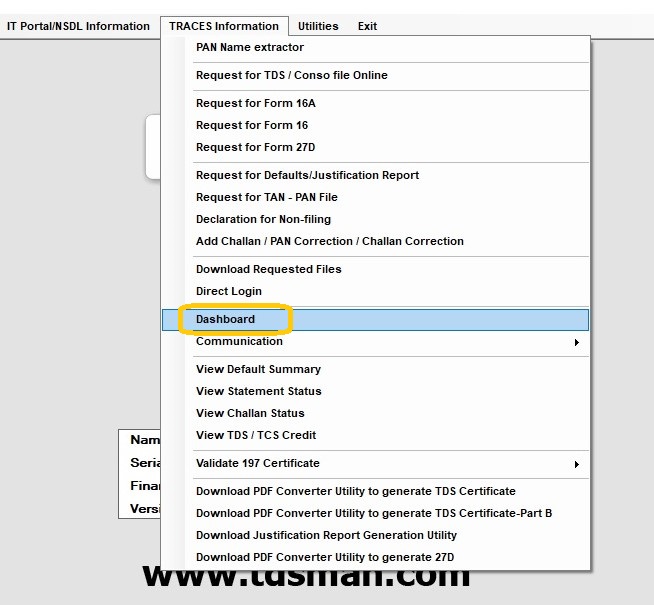
Click on ‘TRACES Information > Dashboard’, the following screen is displayed :-
The following screen will get displayed :
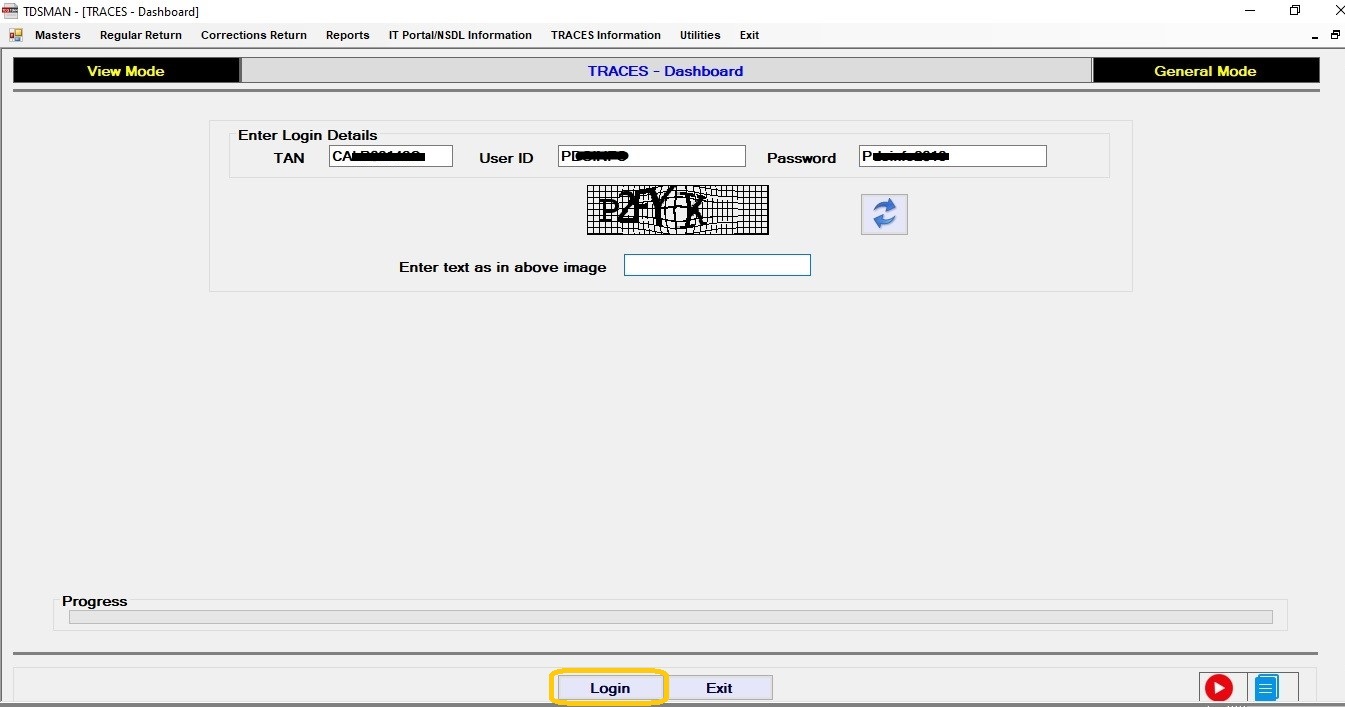
Enter the TRACES credentials and click on ‘Login’
The following screen will get displayed : -
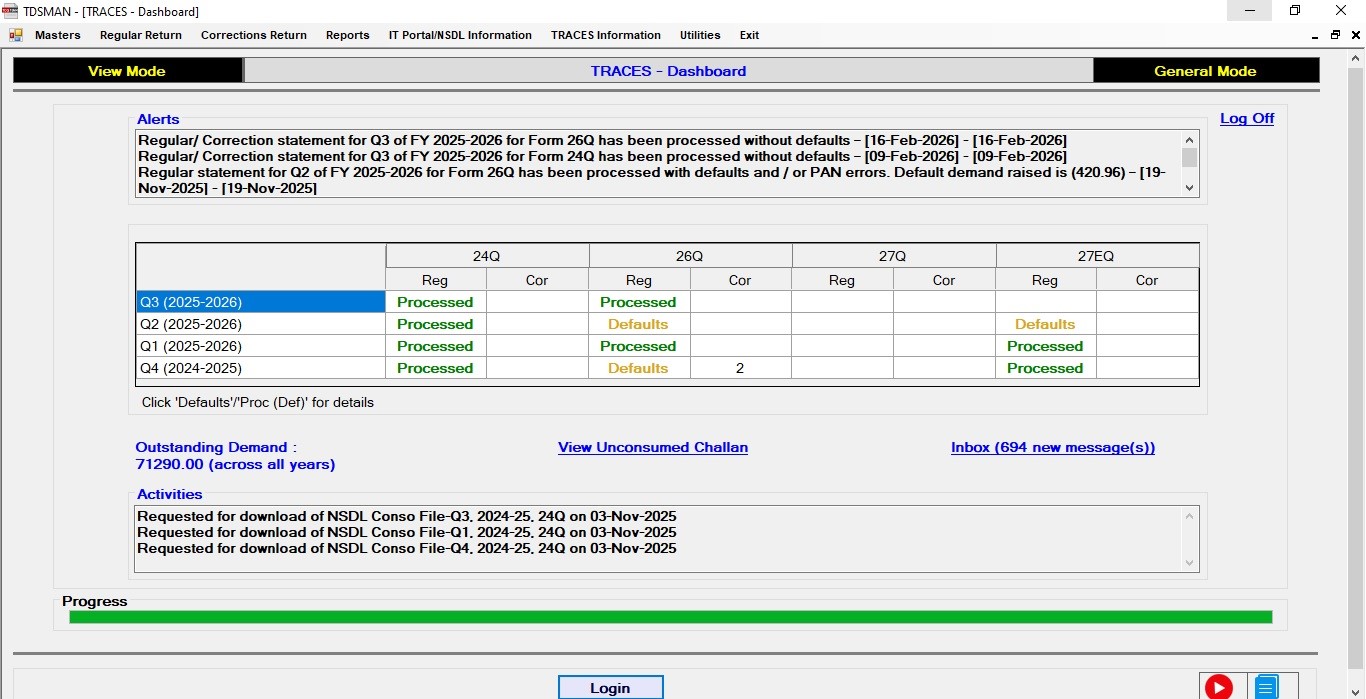
This is the prime interface of the simulated TRACES dashboard in TDSMAN. Overall, it has the following information / links packaged into one interface:
- Alerts as notified by TRACES
- Status of returns pertaining to the immediate last four quarters covering all forms (24Q, 26Q, 27Q & 27EQ). It provides the updated status of both regular and correction (if applicable) statements.
- Outstanding Demand, across all years
- Inbox – for messages from TRACES (link)
- Unconsumed Challans (link)
- Activities
The appropriate cell in the grid displays the status for the last four quarters across all Forms including both regular and correct statements. The ‘status’ values are summarized below :
| Return | Status | Description |
|---|---|---|
| Regular | Blank | Return not filed |
| Regular | Processed | Return successfully processed |
| Regular | Defaults | Return has ‘Defaults’ – click on cell to view default values |
| Regular | Proc (Def) | Had ‘Defaults’, subsequently ‘Processed’ after Corrections |
| Regular | Rejected | Filed Return has been *‘Rejected’ * |
| Correction | Blank | No ‘Correction Statement’ filed for the form / quarter |
| Correction | Value | Each Statement filed will increase the value by one. Once this is successfully processed under the corresponding ‘Regular’ column *‘Proc (Def)’ *will be displayed. |
View Unconsumed Challan
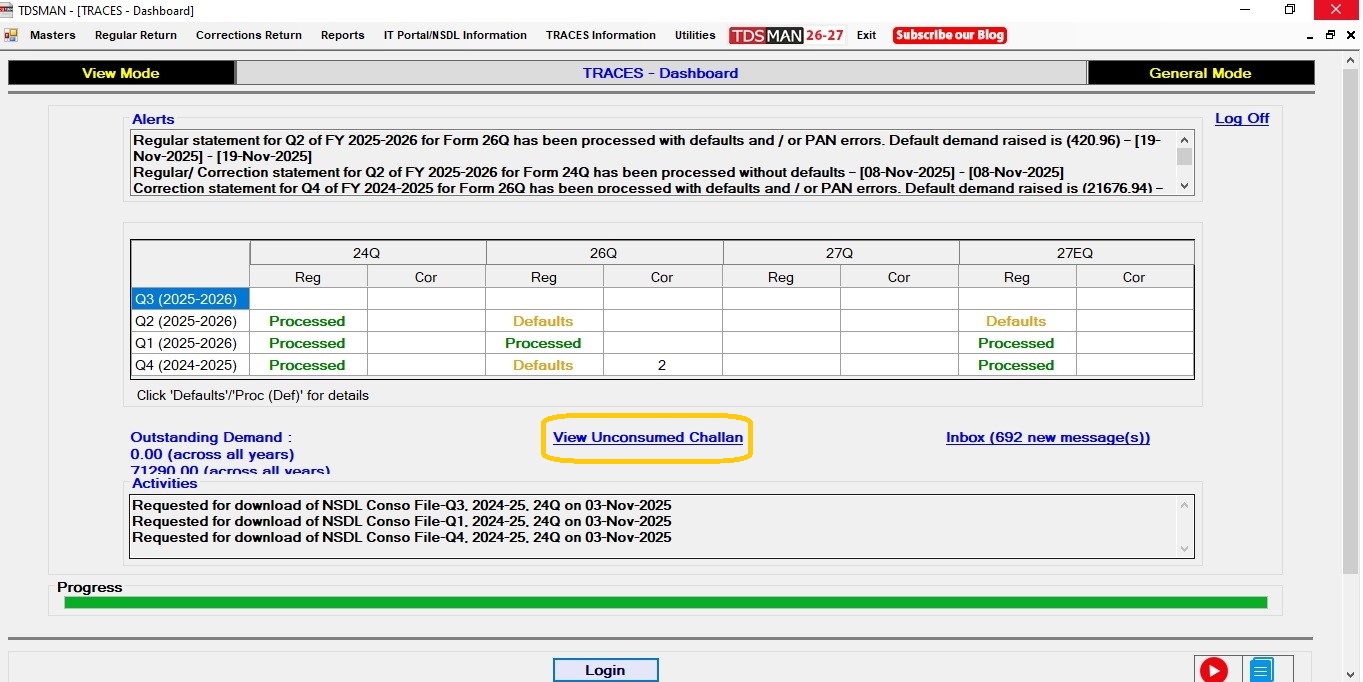
Challans that have unconsumed value can be viewed from this link.
Click on ‘View Unconsumed Challan’, as shown below:
The list of Unconsumed Challan(s) will get displayed as shown below: -
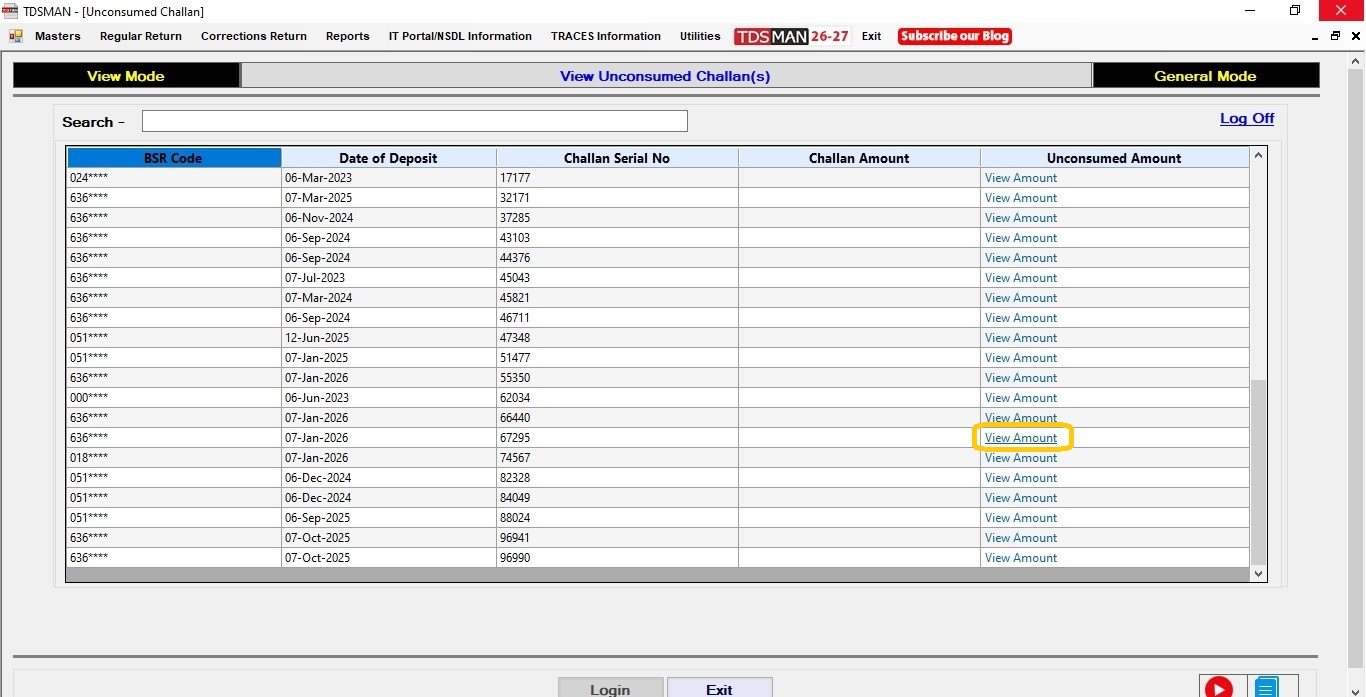
Select the relevant challan and click on ‘View Amount’, the following screen will get displayed :
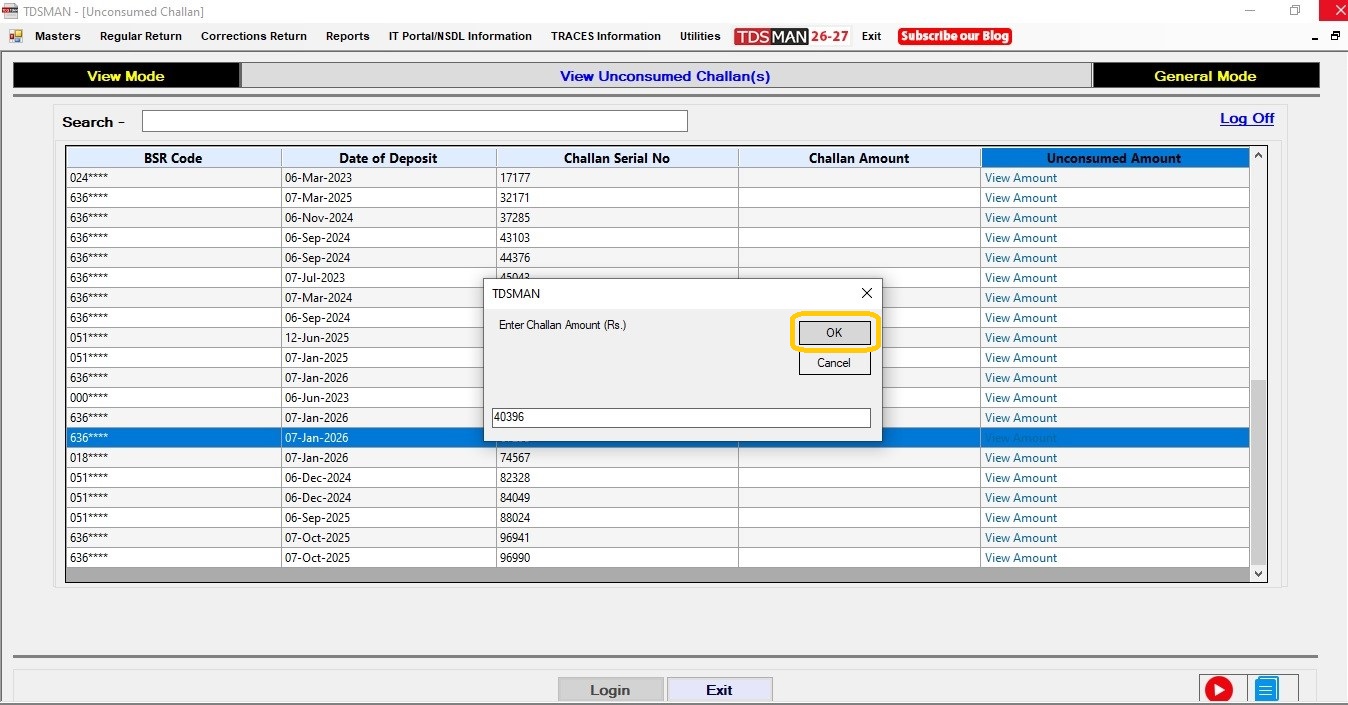
Enter the Challan Amount.
Click on ‘Ok’, the following screen will get displayed:
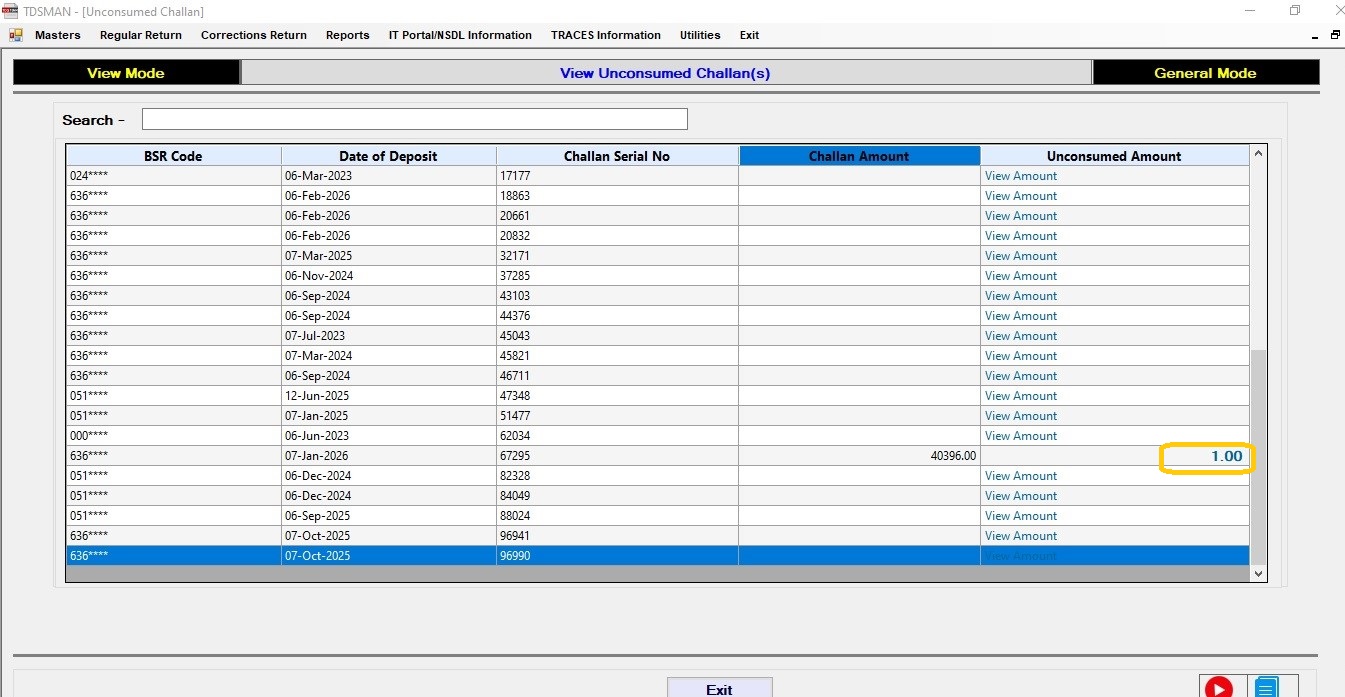
After due validation, the challan amount and the unconsumed value will be displayed in the last two columns.
Click on ‘Defaults’ cell, as shown below :-
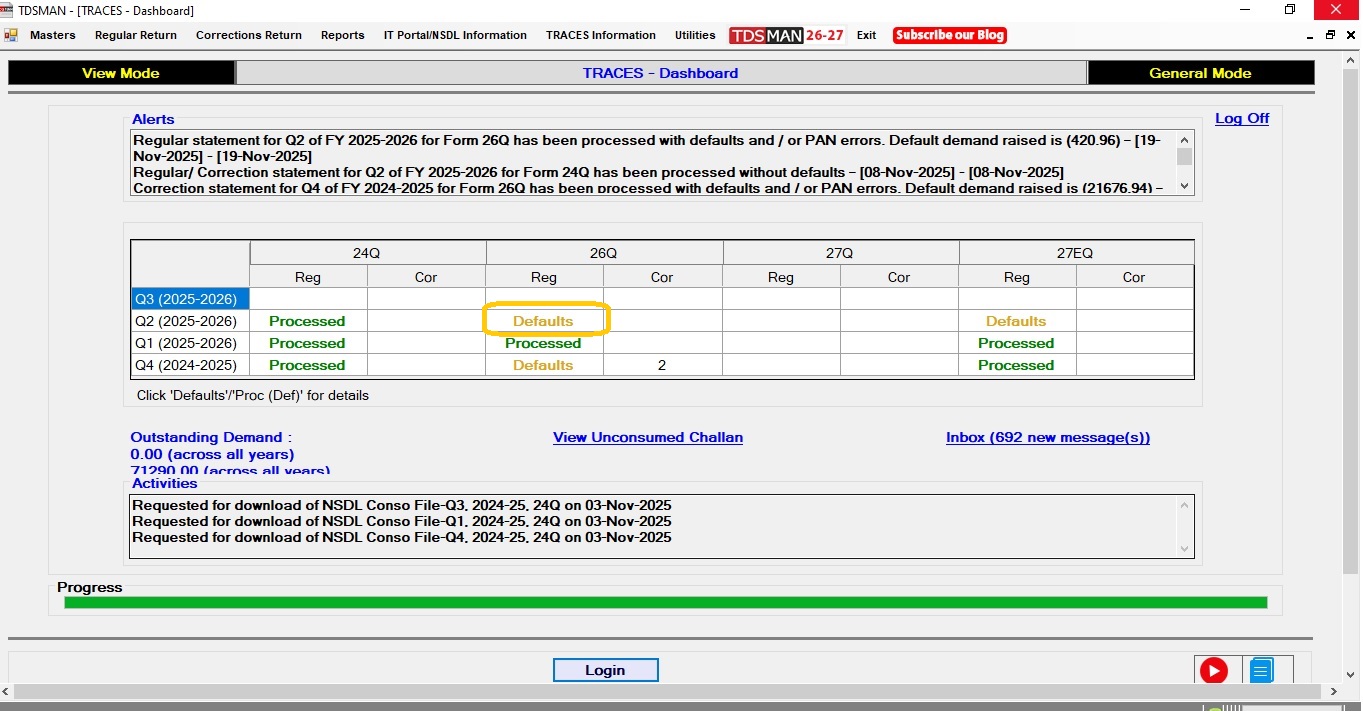
The default value will get displayed as shown below :
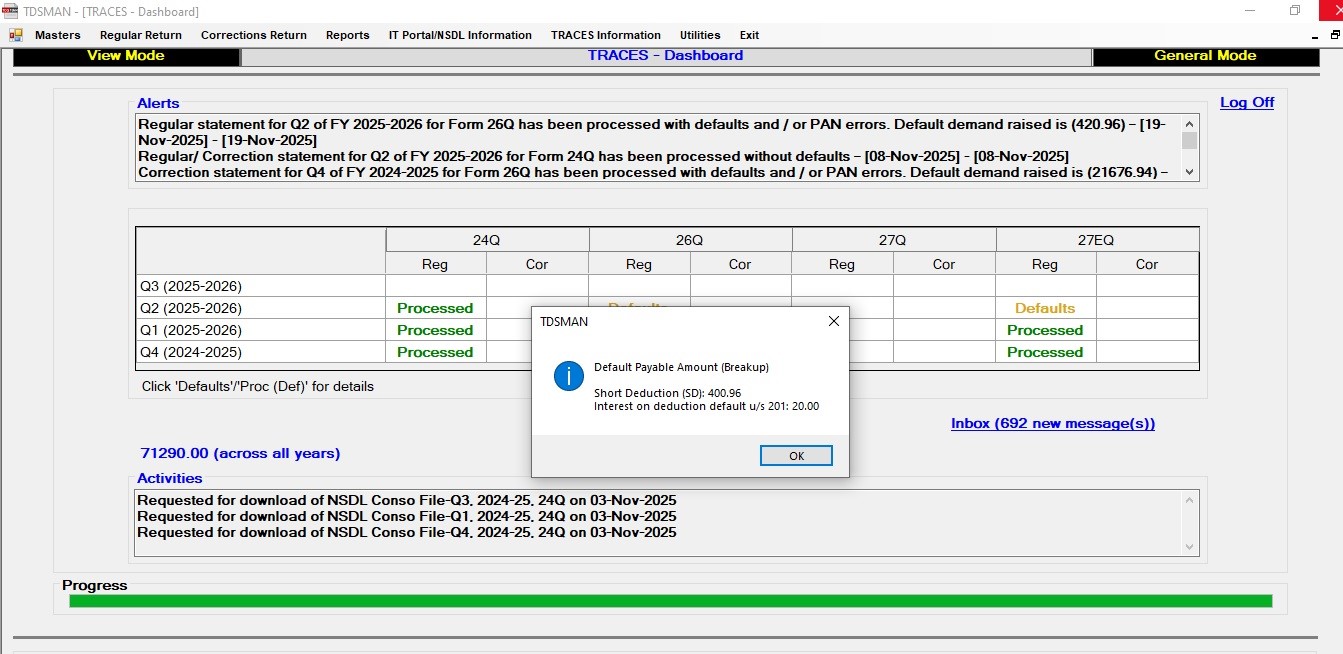
Click on ‘OK’. The following screen will get displayed : -
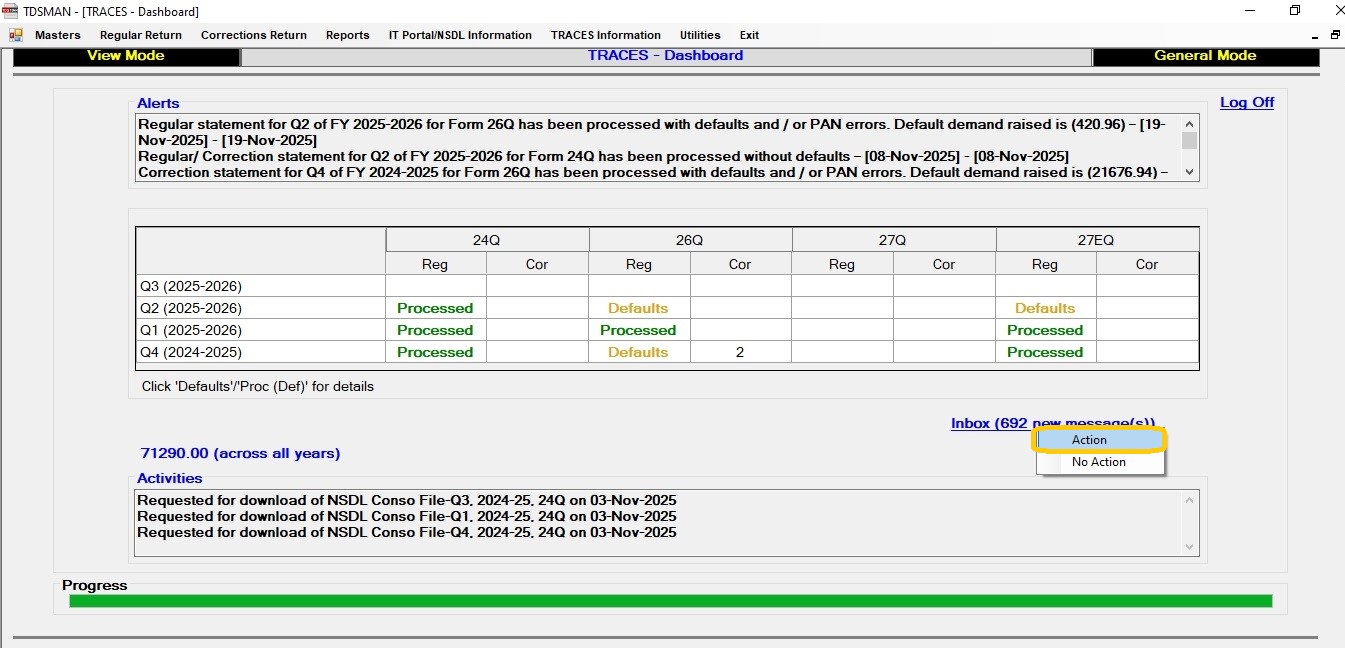
On clicking the ‘Inbox’, system provides the option to select either:
Action – this communication will require action
No Action – this communication is only for information and no action is required
Action
These communications are filtered on which ‘Action’ may be required. ‘Details’ can be viewed for each record by clicking on the option ‘View Details’.
Only for applicable records, one may even Download Certificate by clicking on ‘Download Certificate’.
Click on ‘Action’. The following screen will get displayed :
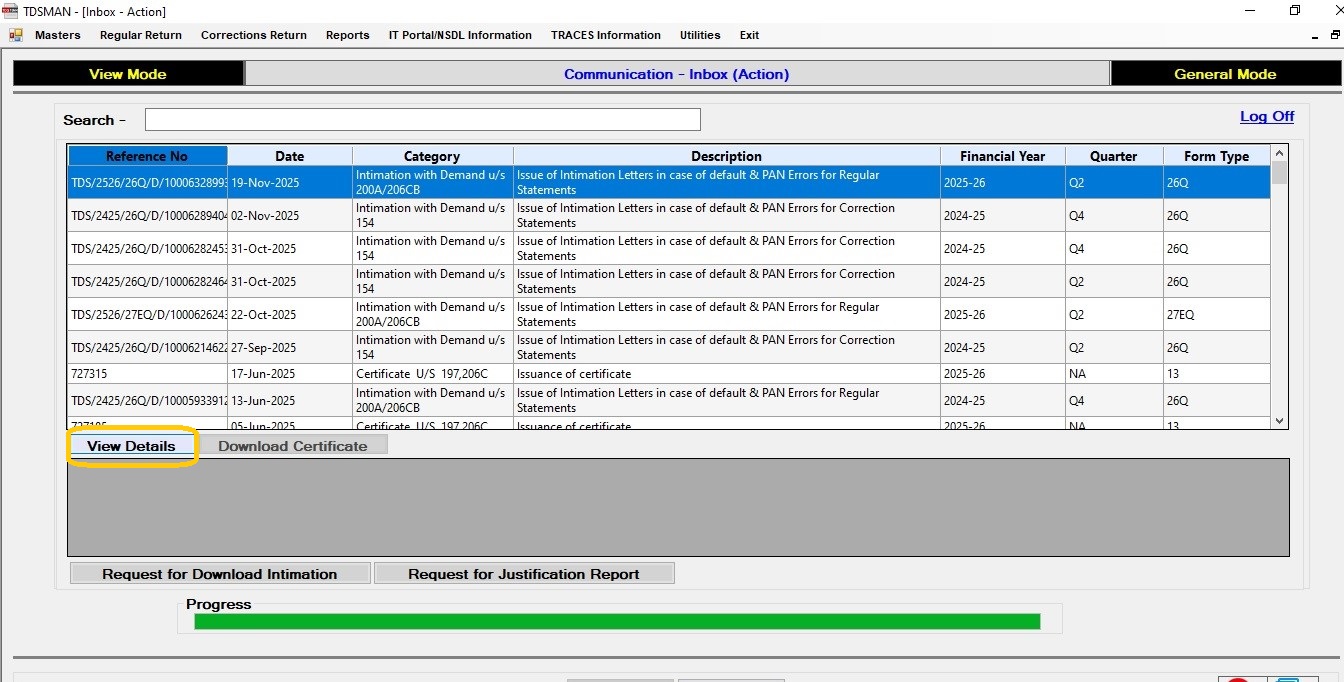
In order to view the details of select the particular record, click on ‘View Details’. The details of that record will get displayed as shown below :-
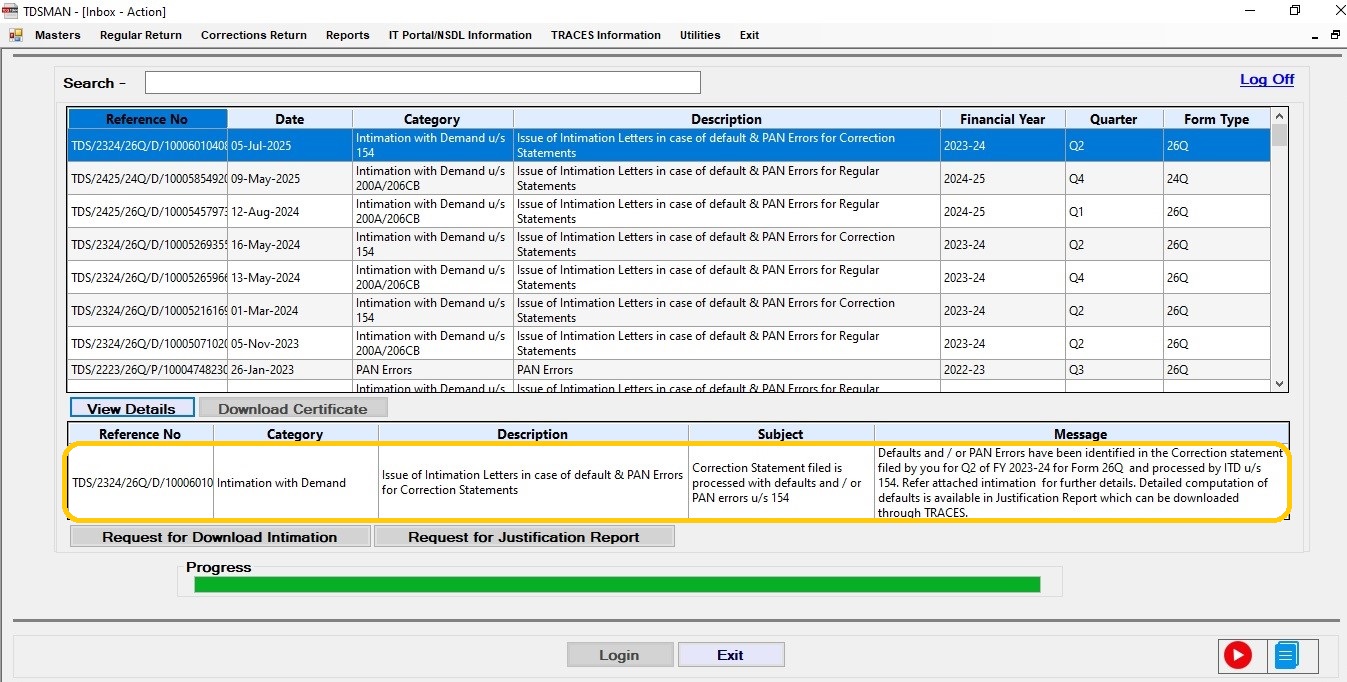
The detail related to the communication is displayed under the grid with further actionable buttons ‘Request for Download Intimation’ and ‘Request for Justification Report’.
In order to send a request to TRACES for downloading a file, click on ‘Request for Download Intimation’ as shown below : –
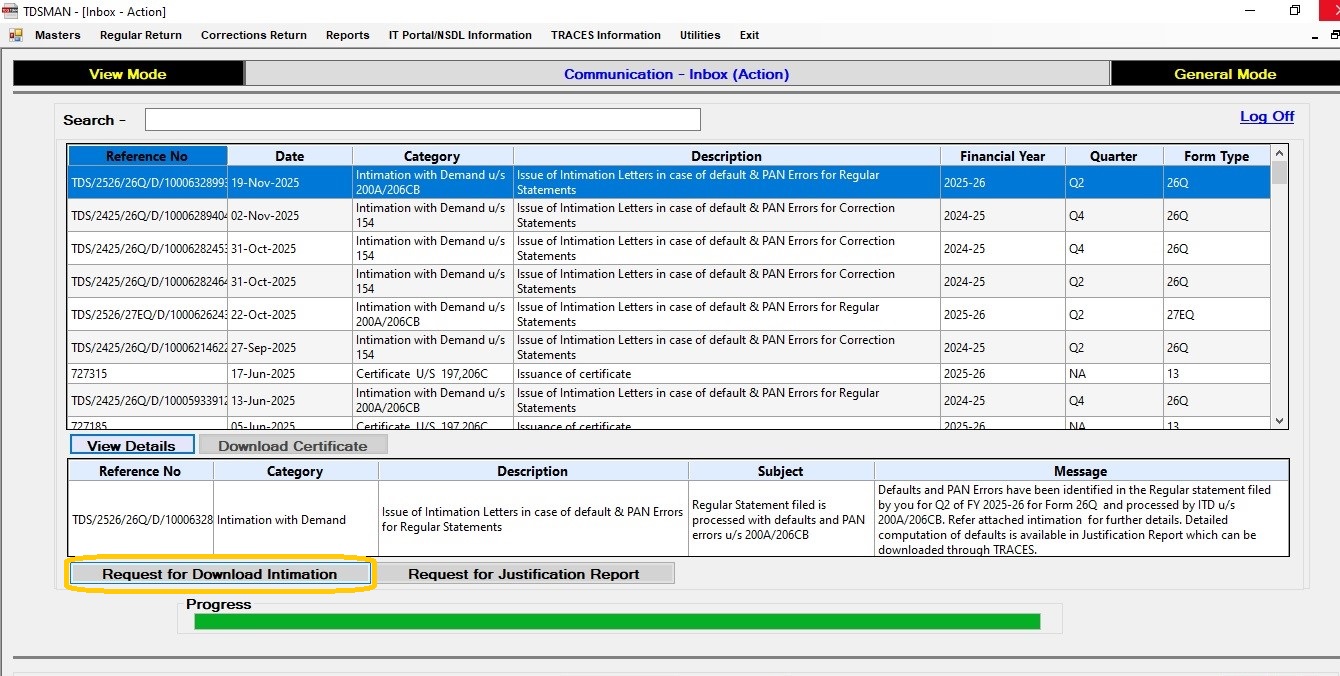
Once the request is successfully submitted to TRACES, the request number will be generated and displayed. This requested file, will be available within some time (usually not later than 24 hours) which will be available under ‘Download Requested Files’ under TRACES.
In order to send a request to TRACES for providing the Justification Report, click on ‘Request for Justification Report’ as shown below :-
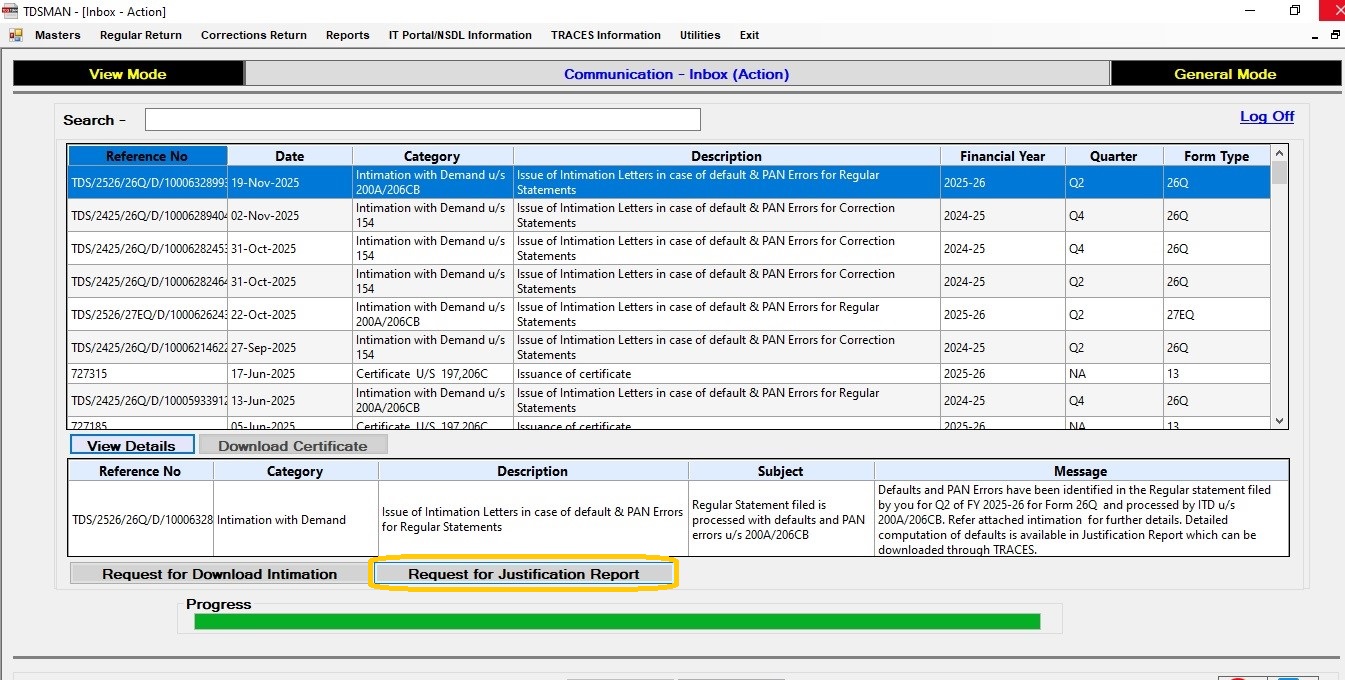
In case of ‘Defaults’ or something similar ‘Request for Justification Report’ can be made from this module directly from the above screen.
On clicking ‘Request for Justification Report’, the screen will be directed to the module ‘Request for Defaults / Justification Report’ for further action.
No Action
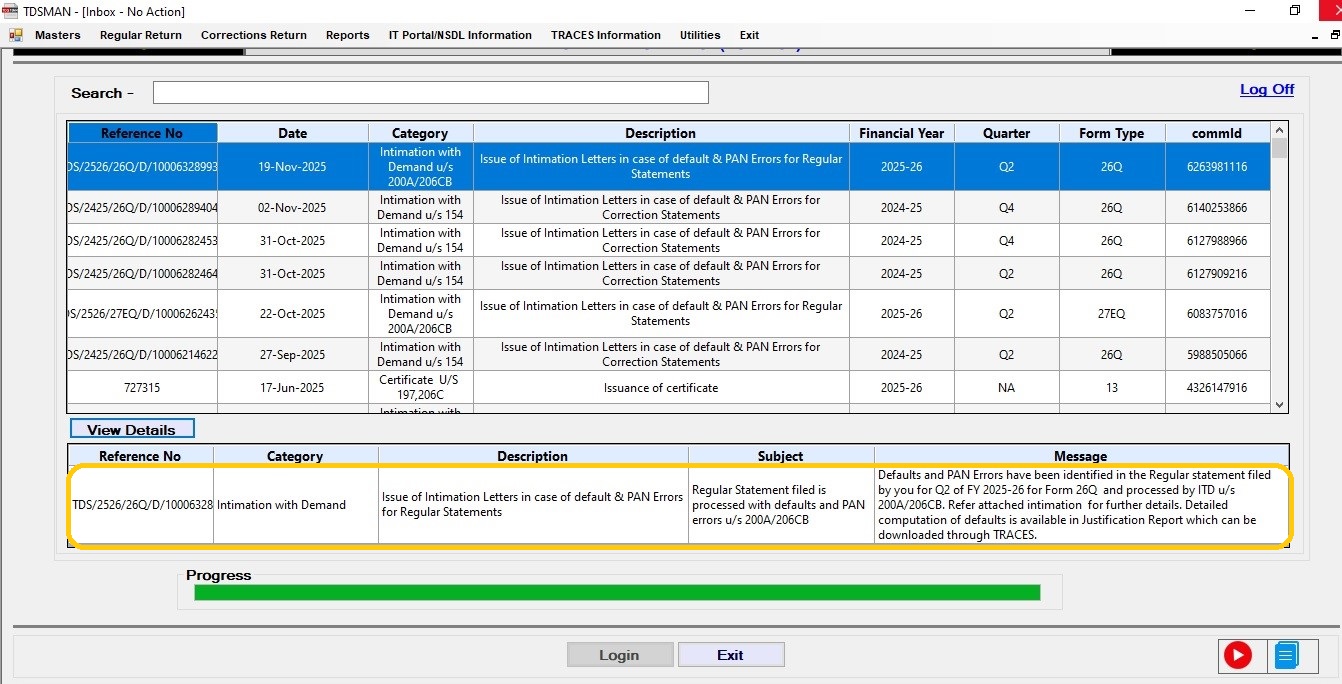
These communications are filtered on which ‘No Action’ is required. ‘Details’ can be viewed for each record.
Click on ‘No Action’
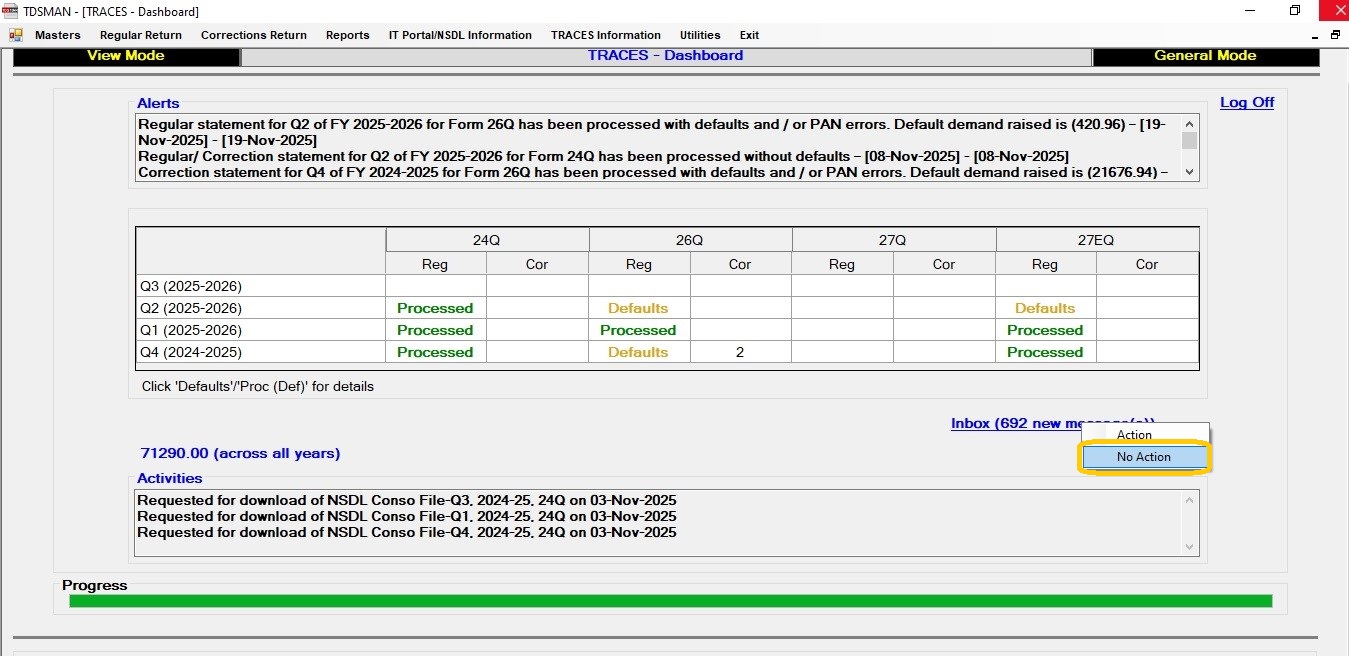
The following screen will get displayed :
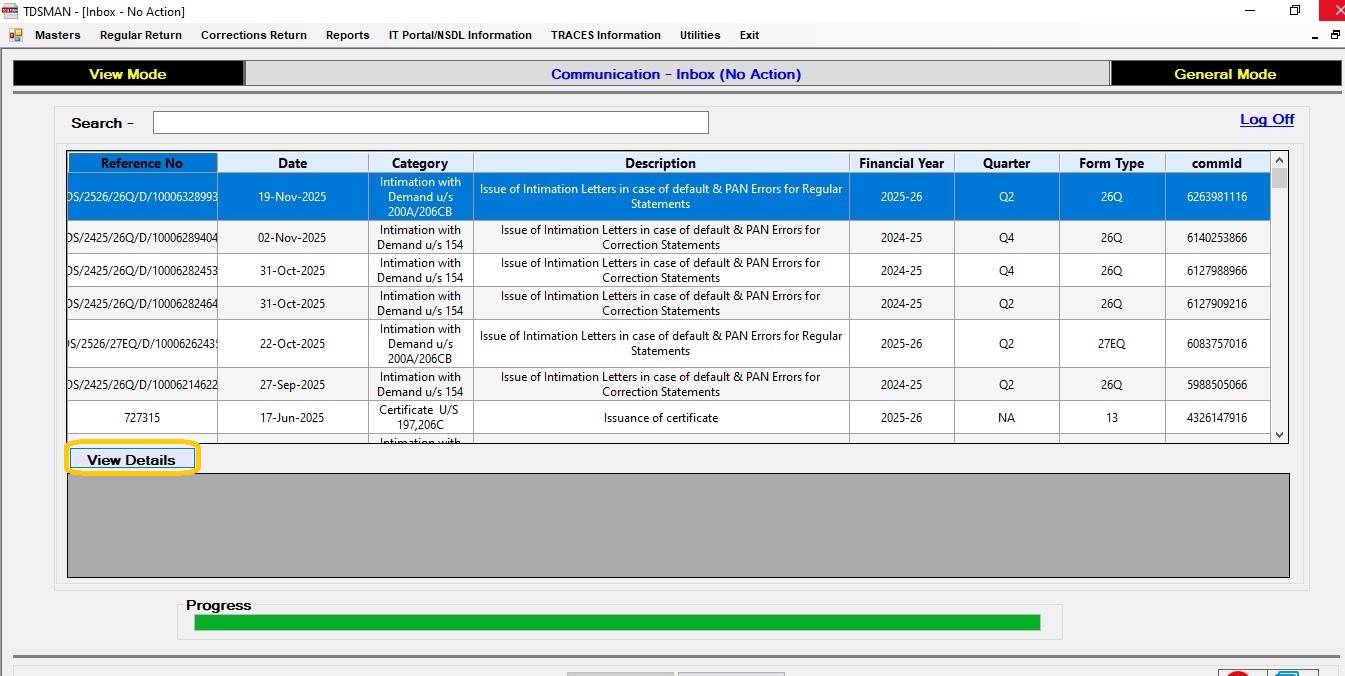
Only the ‘View Details’ option is available.
Click on ‘View Details’ and the details of that record will get displayed as shown below : -
Need more help with this?
TDSMAN - Support